Appearance
Installation & Setup
This guide will walk you through downloading, installing, and setting up Agora for the first time.
Download Agora
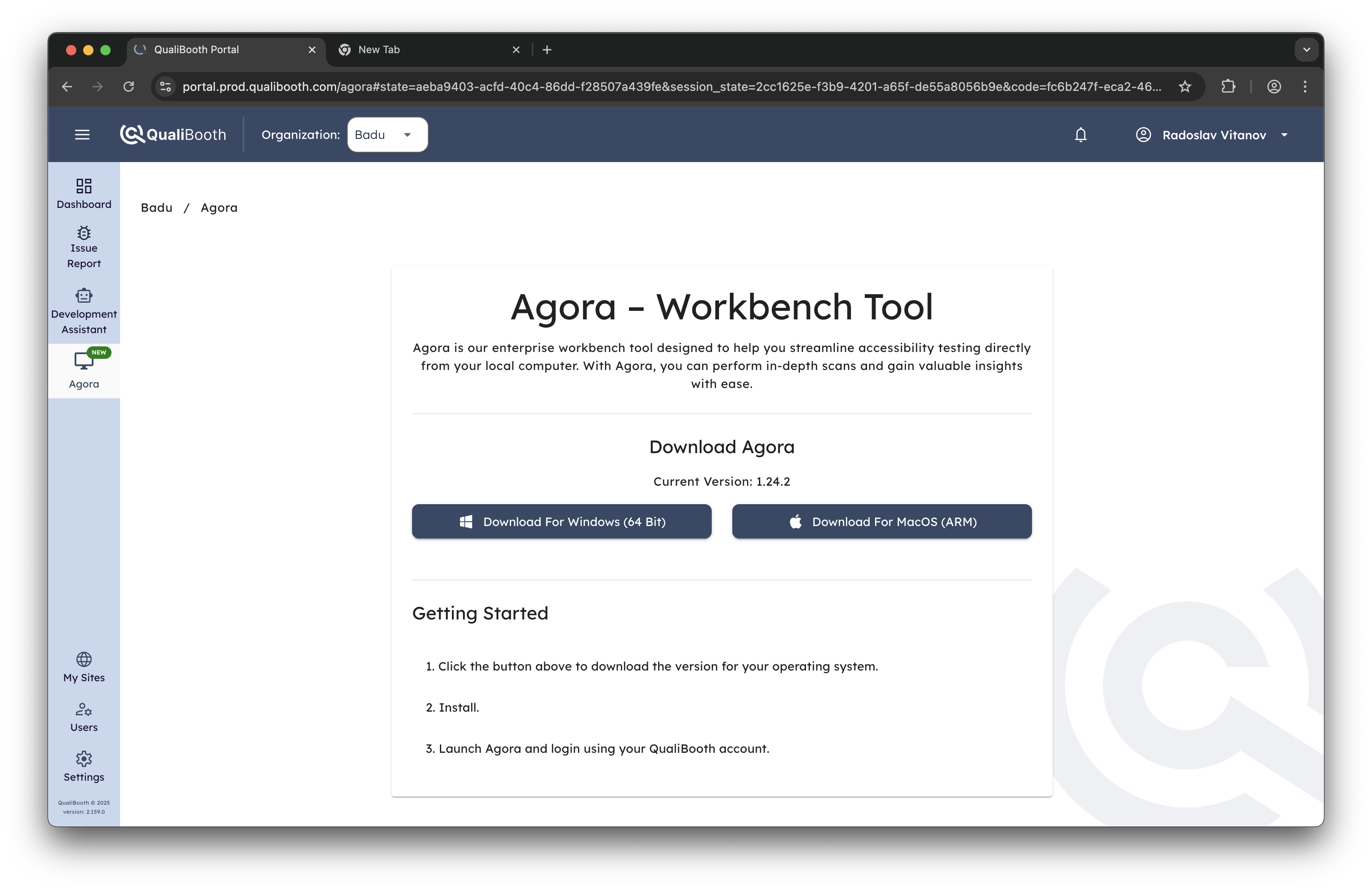
Agora is available for Windows and macOS. Download the latest version from the QualiBooth Portal:
- Log in to your QualiBooth Portal account
- Navigate to the Agora section
- Select the appropriate installer for your operating system:
- Windows:
Agora-Setup.exe - macOS:
Agora.dmg
- Windows:
WARNING
Agora currently supports only 64-bit Windows and ARM-based macOS.
Installation
Windows Installation
- Run the
Agora-Setup.exeinstaller - Follow the installation wizard
- Launch Agora from the Start Menu or desktop shortcut
macOS Installation
- Open the
Agora.dmgfile - Drag the Agora application to your Applications folder
- Launch Agora from Applications or Spotlight
First Launch
When you first launch Agora, you'll be prompted to sign in to your QualiBooth account.
System Initialization
On first launch, Agora will:
- Check Browser Dependencies: Verify Chromium browser components are installed
- Initialize Database: Set up local database for storing scan results
- Verify License: Check your account for valid Agora and/or Agora AI licenses
- Load Settings: Initialize default scanning and application settings
This process typically takes 30-60 seconds.
Initial Configuration
Organization Selection
If you're a member of multiple organizations, can select your active organization. This determines:
- Which websites you can access
- Your role permissions (Admin, Power User, or User)
- Available features and limits
Common Installation Issues
Windows: "App can't run on this PC"
- Ensure you're running Windows 10 or later
- Try running the installer as Administrator
- Make sure your operating system it 64 bit, Agora does not run on ARM architecture yet.
macOS: "App is damaged and can't be opened"
- This usually indicates the app was quarantined by Gatekeeper
- Open Terminal and run:
xattr -cr /Applications/Agora.app
License Issues
- Ensure you have internet connectivity
- Verify your account has an active Agora license
- Contact support if license verification fails
Next Steps
Once Agora is installed and configured:
- Set up authentication if you haven't already
- Run your first accessibility scan
- Explore the Dashboard to familiarize yourself with the interface
- Add your first website for testing
Updating Agora
Agora can automatically check for and install updates:
- Automatic Updates: Enabled by default, checks daily
- Manual Updates: Use Help > Check for Updates
- Update Notifications: You'll be notified when updates are available
Updates are downloaded and installed in the background with minimal disruption to your workflow.
Uninstalling Agora
If you need to uninstall Agora:
Windows
- Go to Settings > Apps & features
- Find "Agora" and click Uninstall
- Follow the uninstaller wizard
macOS
- Drag Agora from Applications to Trash
- Empty Trash to complete removal
TIP
Your scan data and settings are stored separately and will be preserved if you reinstall Agora later.
Need help with authentication? Continue to the Authentication Guide.