Appearance
Accessibility Testing
Agora provides comprehensive accessibility testing powered by the industry-standard axe-core engine. This guide covers automated scanning, violation detection, WCAG compliance testing, and advanced testing methodologies.
Overview
Agora's accessibility testing includes:
- Automated WCAG compliance scanning using axe-core engine
- Real-time violation detection with detailed explanations
- Multiple compliance levels (A, AA, AAA, WCAG 2.1/2.2)
- Visual violation highlighting in browser view
- Code examples and remediation guidance
- Batch scanning for multiple pages
Automated Scanning Engine
axe-core Integration
Agora uses the axe-core accessibility testing engine, which provides:
- Industry Standard: Developed by Deque Systems, trusted by major organizations
- Comprehensive Rules: Tests for hundreds of accessibility issues
- Low False Positives: Highly accurate automated detection
- WCAG Compliance: Covers WCAG 2.1 and 2.2 guidelines, including Level A, AA, and AAA requirements
- Regular Updates: Rule sets are continuously updated for latest standards
Scanning Process
When you run an accessibility scan, Agora:
- Loads the Page: Uses headless or visual browser to load content
- Waits for Completion: Ensures all dynamic content has loaded
- Scrolls if Configured: Triggers lazy-loaded content
- Runs axe-core: Executes accessibility rules against the DOM
- Captures Screenshot: Takes visual snapshot for reference
- Processes Results: Categorizes and stores violation data
- Calculates Score: Generates accessibility score (0-100)
WCAG Compliance Levels
WCAG 2.2 (Latest)
Latest accessibility guidelines with new requirements:
- Target size Ensure targets can be easily activated without accidentally activating an adjacent target
Violation Detection and Classification
Severity Levels
Violations are classified by their impact on accessibility:
| Severity | Impact | Description | Action Required |
|---|---|---|---|
| Critical | Blocks access | These issues are severe and likely to block users from accessing or using a significant portion of the website or application | Fix immediately |
| High | Major barrier | These issues can significantly hinder user experience and may prevent users from completing specific tasks | High priority |
| Medium | Noticeable issue | These issues can impact the user experience and cause frustration or require additional effort to use the website or application | Medium priority |
| Low | Minor concerns | These issues don't significantly impact user experience | Low priority |
Scanning Options and Configuration
Scan Modes
Headless Scanning (Default)
- Faster Performance: No visual browser rendering
- Resource Efficient: Lower CPU and memory usage
- Background Processing: Can run while you work on other tasks
- Batch Friendly: Ideal for scanning multiple pages
Visual Scanning
- Visual Verification: See exactly what's being tested
- Interactive Elements: Better detection of dynamic content
- Screenshot Quality: Higher quality visual captures
- Debugging: Easier to understand scan context
Page Loading Options
Standard Loading
- Wait for Load Event: Waits for page load completion
- Timeout: 30-second default timeout
- Basic Content: Captures static content only
Enhanced Loading
- Scroll to Load: Automatically scrolls to trigger lazy content
- Extended Wait: Additional time for dynamic content
- JavaScript Execution: Ensures all scripts have completed
- Network Idle: Waits for network requests to complete
Rule Configuration
Rule Sets
- WCAG 2.1 Level A & AA Rules: Standard compliance testing
- WCAG 2.2 Level A & AA Rules: Latest guidelines
- WCAG 2.x level AAA rules: Enhanced accessibility testing
Rule Customization
- Enable/Disable Rules: WCAG 2.2 level and AAA rules can be turn on/off
Scanning Workflows
Single URL Scanning
Quick Test Workflow:
- Navigate to website in Agora
- Go to URLs tab
- Click scan icon next to desired URL
- Wait for scan to finish
- Review score and status
- Click the URL to view detailed information about the scan.
Bulk Scanning
Scan All URLs
- Complete Website: Test every URL in the website
- Progress Tracking: Monitor scan progress across all URLs
- Resource Management: Automatic throttling to prevent overload
- Error Handling: Continues scanning if individual scans fail. Scans that fail are retried automatically
Scan Unscanned
- New URLs Only: Test URLs that haven't been scanned
- Incremental Testing: Scan results are added to existing statistics
- Efficiency: Avoid re-scanning URLs with unchanged content
Selective Scanning
- Tag-Based: Scan URLs with specific tags
- URL Patterns: Scan URLs that meet the tag's criteria.
Scanning Protected Content
Many websites require authentication or include security measures like captchas that prevent automated scanning tools from accessing protected pages. Agora provides a specialized authentication workflow that allows you to scan content behind login pages, paywalls, or captcha protection.
Authentication Workflow
Setting Up Authentication
Navigate to Website: Go to your website's detail view in Agora
Click Authenticate: Click the "Authenticate" button (lock icon) in the website header
Browser Opens: Agora opens a dedicated browser window for the website
Manual Authentication: Complete the authentication process manually:
- Enter login credentials
- Solve captcha challenges
- Complete two-factor authentication
- Accept terms of service
- Navigate through any other security measures
Close Browser: Once authenticated, close the browser window
Session Preserved: Agora saves the authentication session for future scans
How Session Reuse Works
After completing the authentication workflow:
- Background Scans: All subsequent scans will reuse the authenticated session
- Persistent Cookies: Login cookies and session data are preserved
- Protected Pages: Previously inaccessible pages become scannable
- Automatic Authentication: No need to re-authenticate for each scan
Authentication Best Practices
Website Requirements
For authentication to work effectively, the target website must support:
- "Remember Me" Functionality: The website should offer persistent login sessions
- Long Session Duration: Sessions should remain valid across multiple scan sessions
- Cookie-Based Authentication: Authentication state should be stored in browser cookies
- Stable Session Management: Sessions shouldn't expire immediately after browser closure
Optimal Setup Process
Before Authentication:
- Test the website's "Remember Me" functionality in a regular browser
- Verify session persistence across browser restarts
- Note any session timeout behavior
During Authentication:
- Always enable "Remember Me" or similar persistent login options
- Complete all required authentication steps thoroughly
- Navigate to a few protected pages to verify access
- Ensure you're fully logged in before closing the browser
After Authentication:
- Run a test scan immediately to verify session works
- Monitor scan results for previously inaccessible content
- Re-authenticate if sessions expire or access is lost
Common Authentication Scenarios
Login-Protected Content
- Member Areas: Content accessible only to registered users
- Premium Content: Paid subscription or paywall-protected pages
- Admin Interfaces: Administrative panels and dashboards
- User Profiles: Personal account pages and settings
Security-Protected Content
- Captcha Verification: Pages requiring human verification
- Geographic Restrictions: Region-locked content
- Rate-Limited Content: Pages with access limitations
- Terms Acceptance: Content requiring agreement to terms
Enterprise Authentication
- Single Sign-On (SSO): Corporate authentication systems
- Multi-Factor Authentication: Two-step verification processes
- VPN-Protected Resources: Internal company websites
- Certificate-Based Authentication: Client certificate requirements
Troubleshooting Authentication Issues
Session Expiration
Problem: Previously accessible pages become inaccessible during scans Solutions:
- Re-run the authentication workflow
- Check if the website's session timeout settings are too restrictive
- Verify "Remember Me" was enabled during authentication
Incomplete Authentication
Problem: Some protected pages remain inaccessible Solutions:
- Ensure all authentication steps were completed
- Navigate to problem pages manually during authentication
- Check for additional permission levels or role requirements
Cookie Issues
Problem: Authentication session isn't preserved between scans Solutions:
- Verify the website uses standard cookie-based authentication
- Check if the website requires specific browser settings
- Try re-authenticating with different session persistence options
Security Considerations
Privacy and Security
- Credential Safety: Agora doesn't store or access your login credentials
- Session Isolation: Each website's session is isolated from others
- Local Storage: Authentication data is stored locally on your machine
- No Transmission: Credentials are never transmitted to Agora servers
Best Practices
- Use Test Accounts: When possible, use dedicated test accounts for scanning
- Monitor Access: Regularly review which pages are being accessed
- Session Management: Periodically refresh authentication sessions
- Access Logging: Monitor website access logs for scanning activity
Limitations and Considerations
Technical Limitations
- JavaScript-Heavy Auth: Complex authentication flows may require manual intervention
- Dynamic Sessions: Frequently changing session tokens may cause issues
- IP Restrictions: Some websites may block automated access regardless of authentication
- Rate Limiting: Authenticated sessions may still be subject to rate limits
Planning Considerations
- Scan Scheduling: Plan authenticated scans when session tokens are fresh
- Content Changes: Protected content may change more frequently than public content
- Resource Usage: Authenticated scans may access more pages, increasing scan time
Results Analysis
Accessibility Scores
Agora calculates accessibility scores based on violation severity and frequency:
Score Calculation
- Base Score: Starts at 100 points
- Violation Impact: Points deducted based on severity
- Multiple Violations: Additional penalties for repeated issues
- Page Complexity: Adjustments for page size and elements
Score levels
- High (Green): Scores 85-100 signify strong compliance with accessibility standards
- Medium (Orange): Scores 60-85 highlight partial compliance, indicating areas for improvement
- Low (Red): Scores below 60 denote significant accessibility barriers
Violation Details
Each violation provides comprehensive information and interactive tools to help you understand and fix accessibility issues:
Violation Summary
- Rule name: What accessibility principle was violated
- Rule description: Description of the rule
- Severity: Indicates the severity level of each rule
- Compliance levels: What compliance levels are violated
- Element Count: How many elements are affected
Technical Details
- HTML snippet: The element's HTML where the issue occurred
- Good Implementation Examples: Static code examples showing proper implementation for reference
- Fix Recommendation: Suggested remediation steps
Interactive Features
Element Location
- Locate Button: Quickly scroll the problematic element into view in the browser
- Visual Highlighting: Elements with violations are highlighted in the browser view
- Element Focus: Click to focus on specific elements for detailed inspection
AI-Powered Assistance
- QualiSense Button: Available for users with Agora AI license
- Issue Explanation: Get detailed explanations of why the violation occurs
- Solution Proposals: Receive AI-generated suggestions for fixing the issue
- Context-Aware Help: Solutions tailored to your specific code and situation
- Best Practices: Learn about accessibility standards and implementation patterns
Visual Context
- Screenshots: Visual reference showing the page
- Element Highlighting: Problematic elements highlighted
Testing Best Practices
Comprehensive Testing Strategy
Test Early and Often
- Development Phase: Test during development, not just at the end
- Iterative Testing: Scan after each significant change
- Regression Testing: Ensure fixes don't introduce new issues
Representative Testing
- Key User Paths: Test critical user journeys
- Form Interactions: Include all form and input scenarios
- Dynamic Content: Test interactive and dynamic features
- Error States: Include error pages and validation messages
Multi-Page Analysis
- Homepage: Primary entry point testing
- Content Pages: Article and information pages
- Interactive Pages: Forms, search, and tools
- Mobile Views: Responsive design testing
Validation and Manual Testing
Automated vs Manual Testing
- Automated Strengths: Consistent, fast, comprehensive rule checking
- Manual Requirements: Context, usability, complex interactions
- Combined Approach: Use automated results to guide manual testing
Advanced Testing Features
Browser View Integration
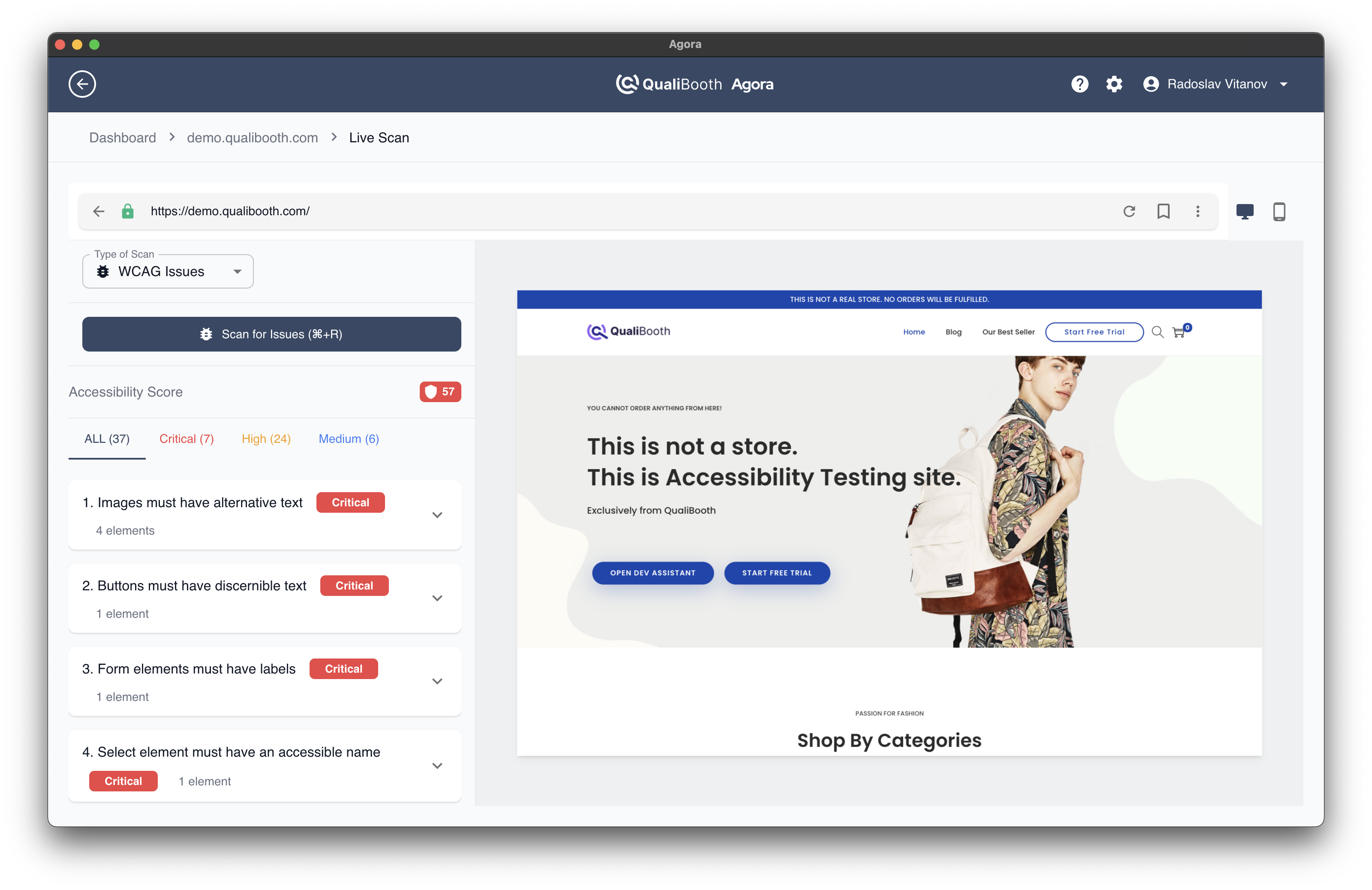
Real-Time Scanning
- Live Violation Display: See issues highlighted as you browse
- Interactive Testing: Test form interactions and dynamic content
- Instant Feedback: Immediate results as you navigate
- Fix Verification: Test solutions in real-time
Element Inspection
- Violation Details: Click elements to see specific issues
- Code Context: View the HTML of the problematic elements
- Good Implementation Examples: Can be used as references when fixing violations
- Fix Recommendation: Suggested remediation steps
Ready to learn about live testing? Continue to Live Testing.